Email Communications
This page documents the Email Communications capability exposed in the Portal UI.
Overview
Admins and eligible users can send email communications directly from list and detail views:
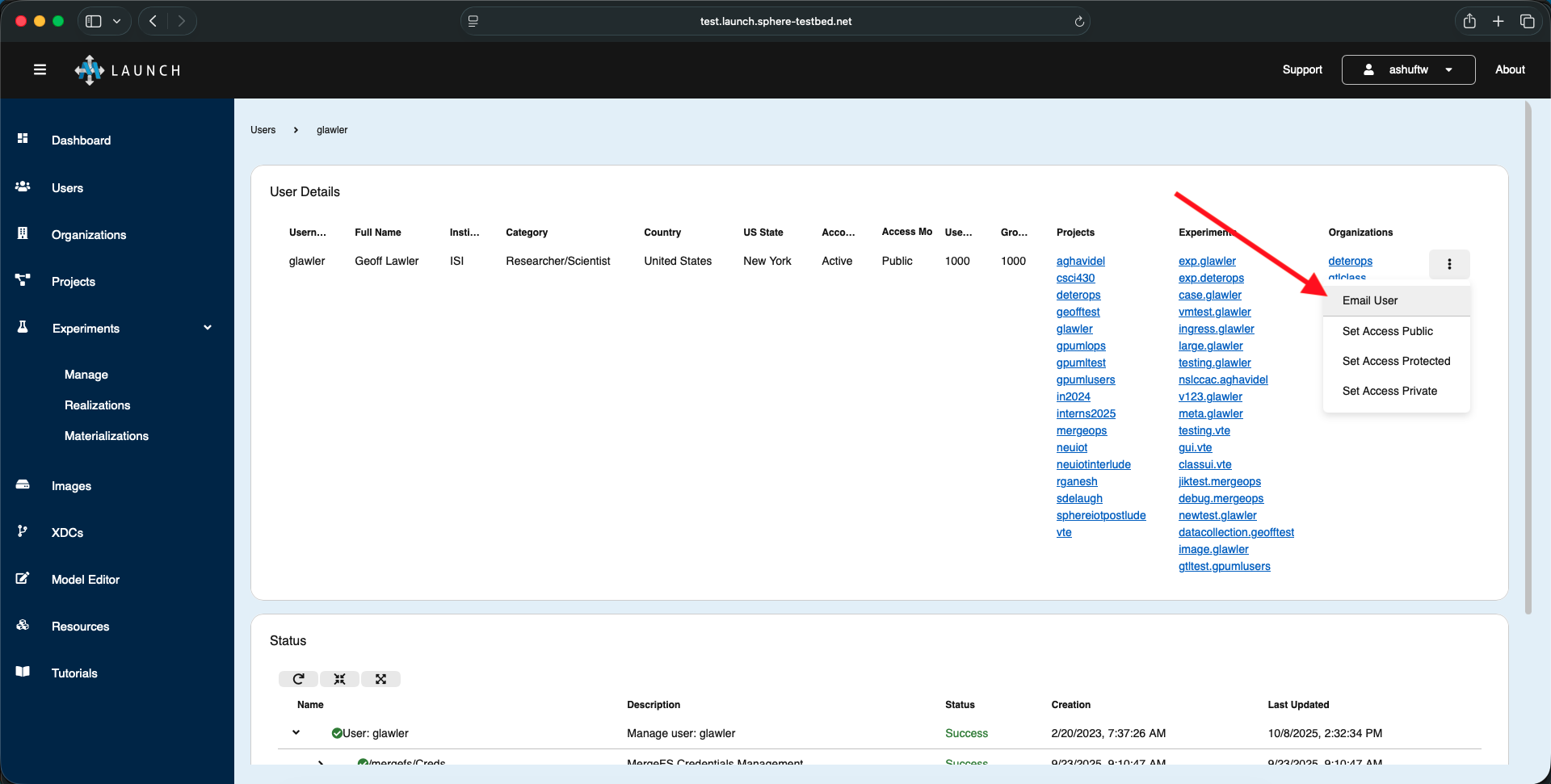
- Email Users
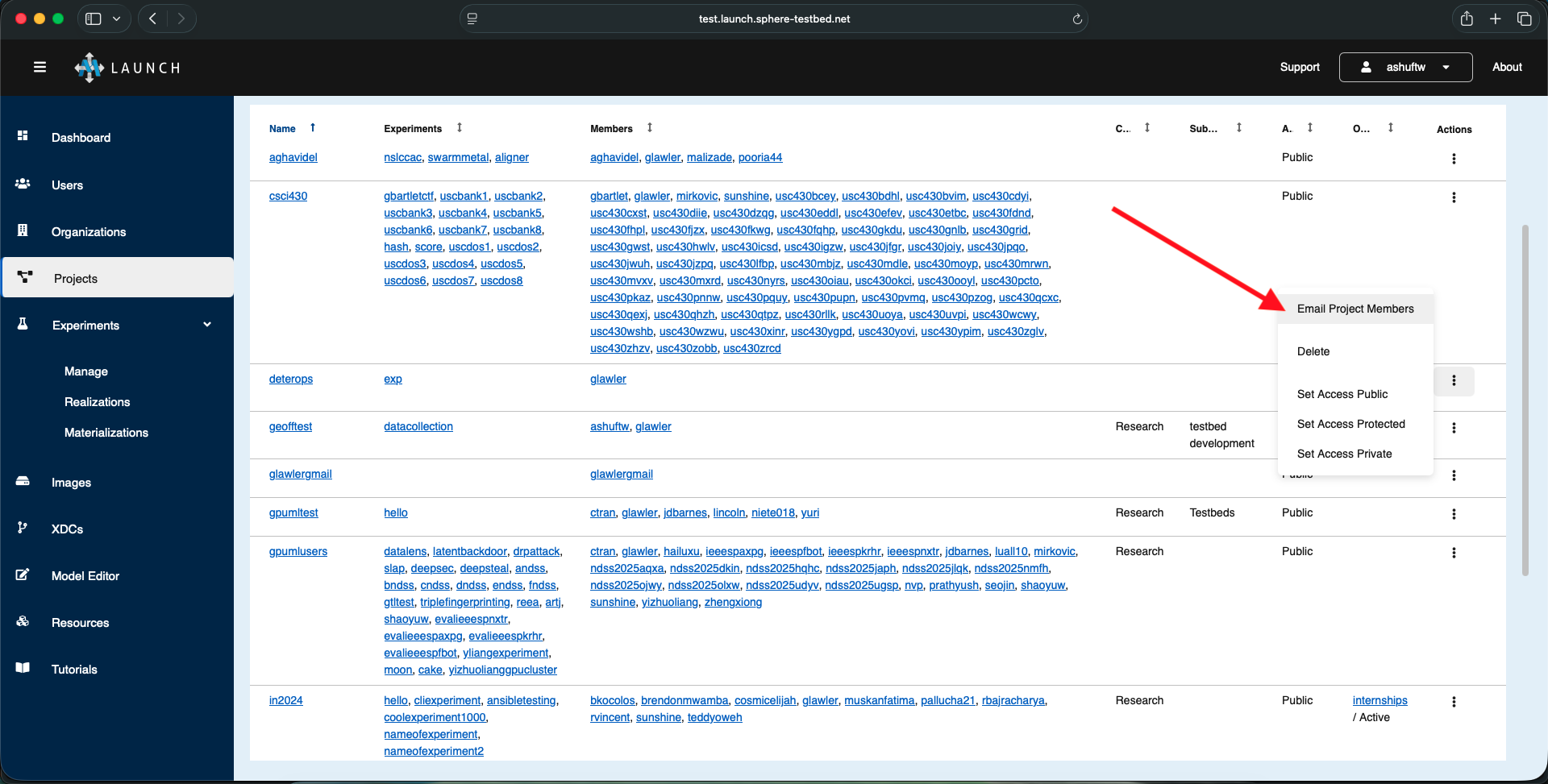
- Email Project Members
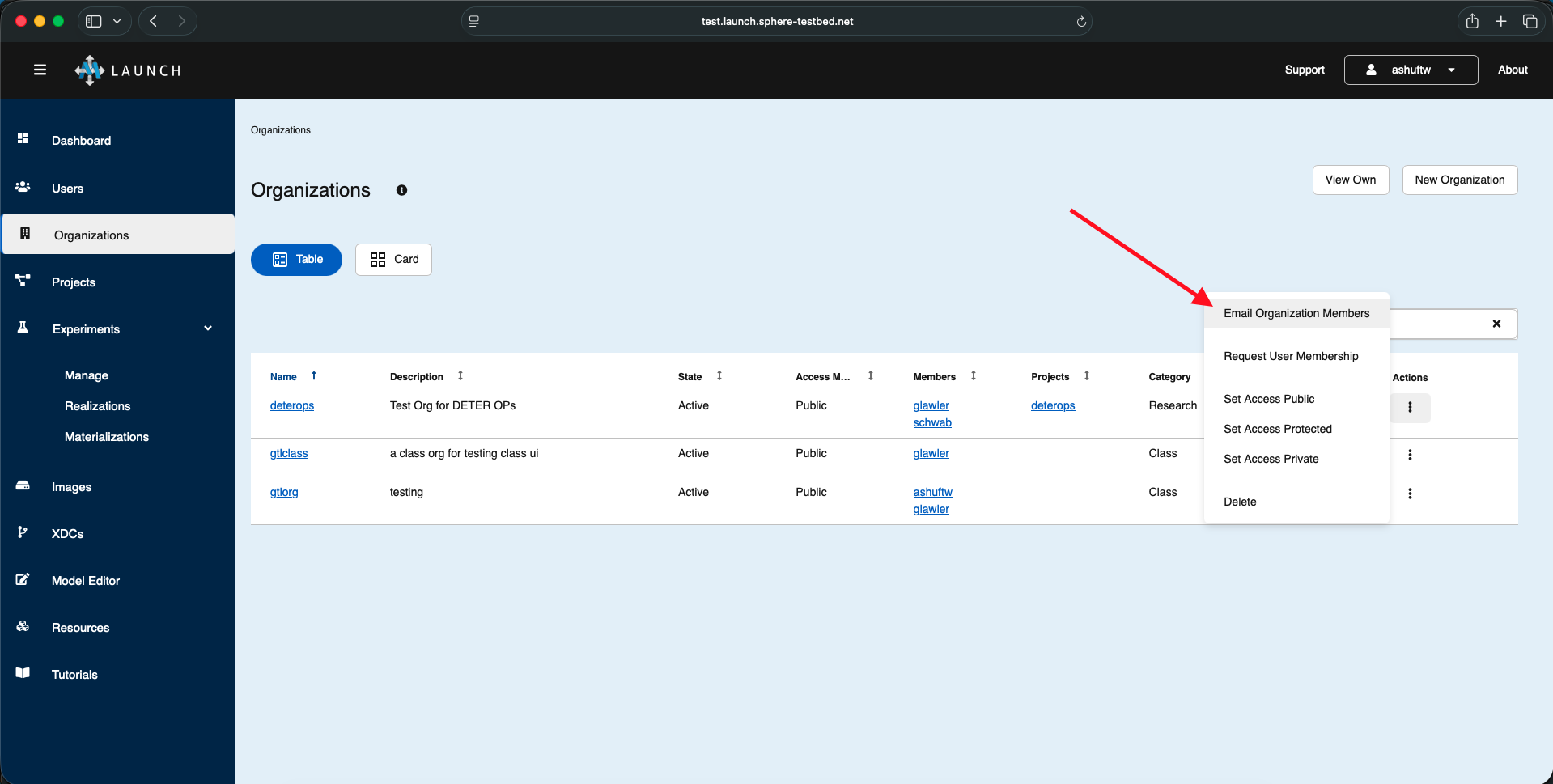
- Email Organization Members
These actions open a dialog to compose and submit messages.
Where to find the actions
- User detail: Actions menu includes “Email User”.
- Projects list: Row action “Email Project Members”.
- Organizations list: Row action “Email Organization Members”.
Compose Email dialog
The dialog presents required fields and optional scoping inputs depending on context:
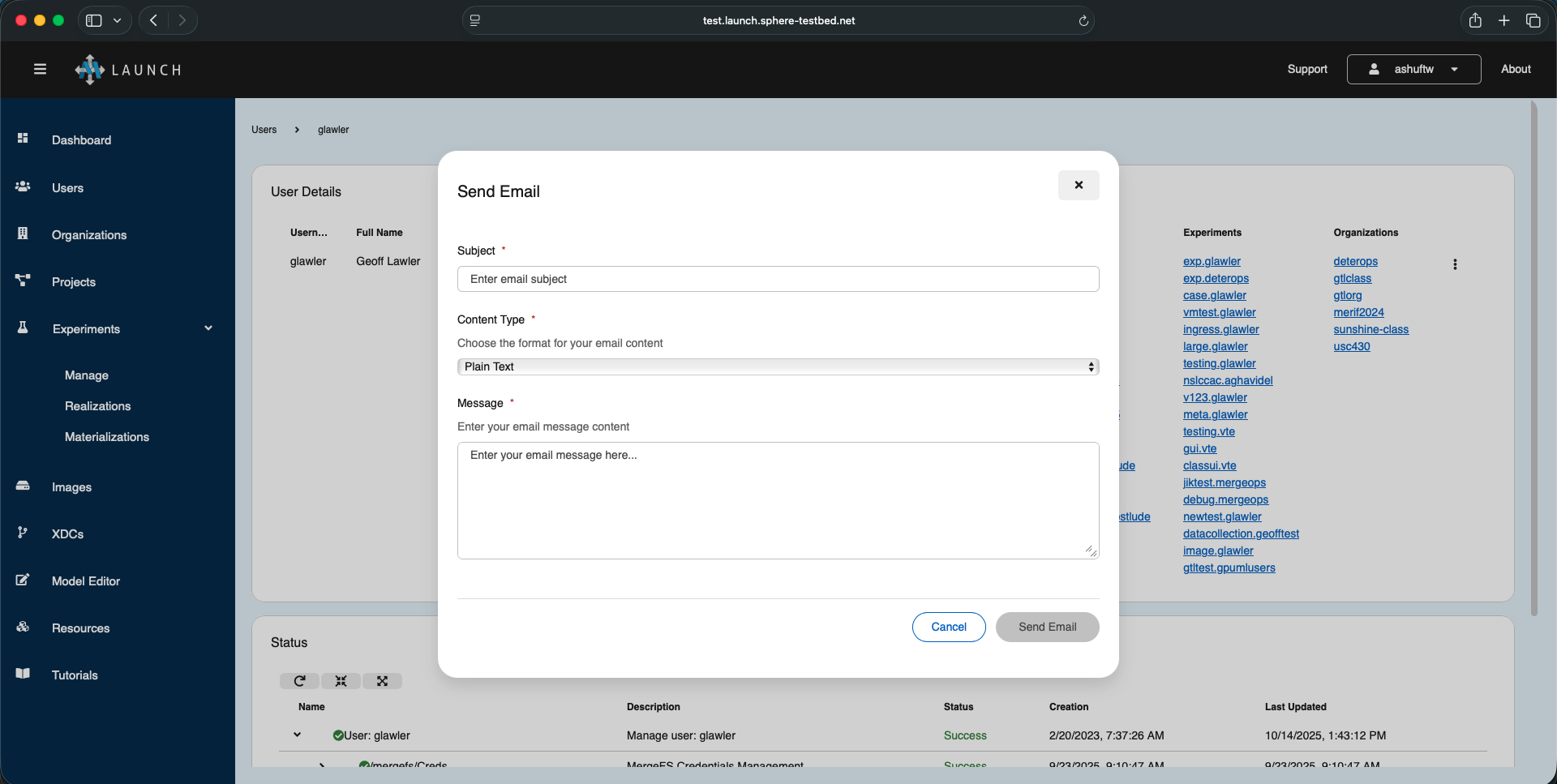
Dialog fields:
- Subject: Required
- Content Type:
text/plainortext/html - Message: Required
On submit, the email is sent to the users, project, or organization, and you’ll see a success or failure message.
Access and permissions
The ability to email a project, user, or organization is based on your role in the project or organization and the policy set by the testbed operators. Users, projects, and organizations may be set to Public, Protected, and Private - this access level and your role will determine whether or not you are able to send the email.
Notes
- HTML content is sent as-is when
contentTypeistext/html. Ensure content is sanitized as appropriate server-side. - The dialog clears its state after a successful send.
Feedback
Was this page helpful?
Glad to hear it! Please tell us how we can improve.
Sorry to hear that. Please tell us how we can improve.